
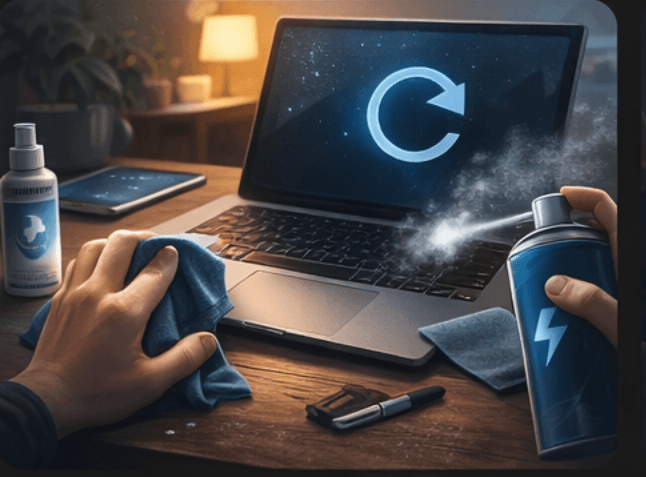
Why safe cleaning matters
Dust blocks airflow, traps heat, and makes fans work harder. On screens, the bigger risk is using the wrong cleaner and damaging the coating.
A small amount of routine care can help a laptop, desktop, monitor, or keyboard last longer and feel better to use.
What to use
For most everyday cleaning, a clean microfiber cloth is the safest place to start. For vents and keyboards, compressed air can help when used carefully and in short bursts.
If a screen needs more than a dry wipe, lightly dampen the cloth instead of spraying the device directly.
- A soft microfiber cloth
- Compressed air used carefully for vents and keyboards
- A small amount of screen-safe cleaner or water on the cloth, not on the screen
- A soft brush for loose dust around vents or ports
What to avoid
A normal household vacuum feels like an easy dust fix, but it is not the best tool around electronics. Strong suction and static risk are both reasons to avoid it.
You should also avoid bleach, ammonia, strong glass cleaners, paper towels, and heavy sprays directly onto screens or keyboard openings.
- Vacuuming directly into vents with a normal household vacuum
- Bleach, ammonia, or strong glass cleaners on screens
- Paper towels or rough cloths that can scratch screen coatings
- Spraying liquid directly onto the device
A simple safe routine
Shut the device down first. Unplug it if practical. Wipe the outside gently with a dry microfiber cloth. Use compressed air sparingly for vents and keyboards, keeping the can upright and avoiding long blasts.
For screens, wipe gently. If more cleaning is needed, put a small amount of cleaner on the cloth and then wipe the screen. Let everything dry fully before turning the device back on.
When to stop and get help
If the device is overheating, the fan is grinding, or dust is packed deep inside a laptop or desktop, internal cleaning may be needed. That is the point where many people do more harm than good by opening the device without the right tools.